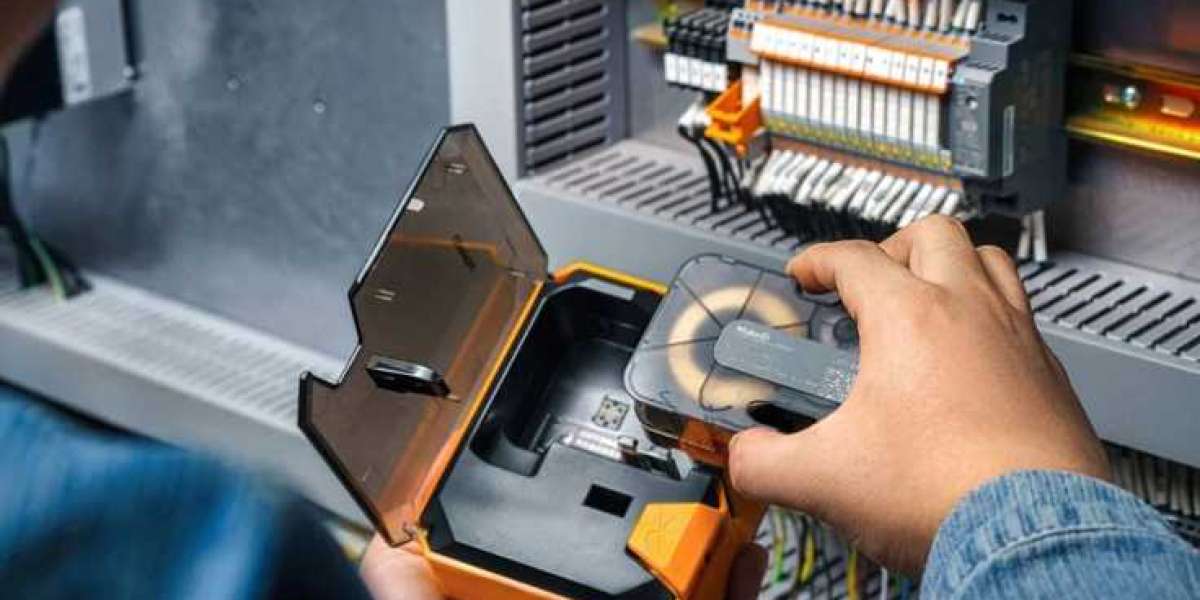

We often think of a paper jam as a purely mechanical failure, but did you know that your computer or mobile app settings could be the culprit? If the software sends instructions that don't match the physical media inside the printer, the result is often a messy jam.
When using a MakeID printer like the P31S, it is vital to ensure that the label size and media type selected in the app correspond exactly to the cartridge you have installed. For instance, if you have a 12mm label installed but the software is configured for a 24mm label, the printer may attempt to feed more material than the path can handle. This misalignment can cause the printer to skip sensors or feed labels at the wrong speed, leading to bunching inside the mechanism.
Before you start a large print job, always double-check your settings. Ensure the "Media Type" is set correctly—whether you are using PET labels, heat shrink tubes, or nylon cloth. Each material has a different thickness and requires a specific amount of heat and tension. If the settings are wrong, the heat might be too high, causing the label to stick to the print head, or too low, causing the ribbon to slip. A quick verification of your digital settings can prevent a physical headache. By syncing your software and hardware perfectly, you allow the MakeID system to operate at peak efficiency, delivering professional-grade labels without the frustration of constant mechanical interruptions. Click here to know more.