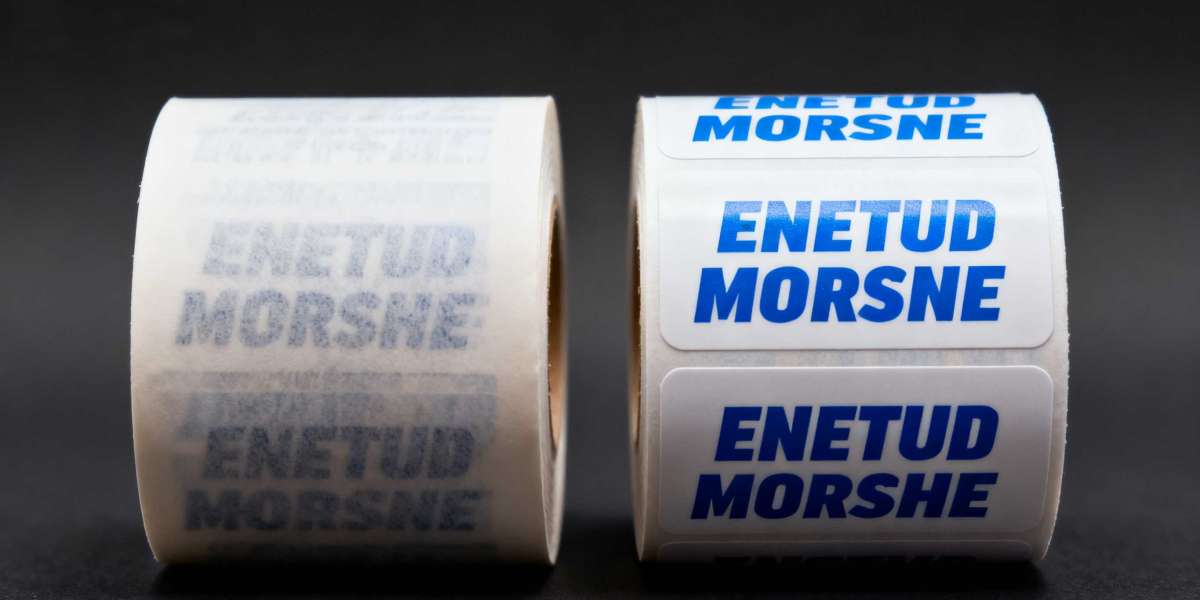

If you’re experiencing this issue with a MakeID printer, understanding the root causes and following targeted troubleshooting steps can resolve most problems. For detailed, brand-specific guidance, MakeID’s official resource Why Is My Printer Printing Blurry offers tailored insights, but this article outlines general yet effective solutions aligned with common printer mechanics and MakeID’s product design.
Common Causes of Blurry Printing in MakeID Printers
Blurriness typically stems from issues related to hardware, 耗材 (consumables), settings, or maintenance—all of which are manageable with basic troubleshooting:
- Worn or Contaminated Print Head: The print head is the core component responsible for transferring ink or heat (in thermal printers) to labels. Dust, debris, or residue from low-quality labels can accumulate on the print head, while prolonged use may cause wear, resulting in uneven ink/heat distribution and blurry output.
- Low-Quality or Incompatible Consumables: Using non-MakeID or improper label materials (e.g., low-grade paper, incorrect adhesive type) can lead to ink bleeding or poor heat transfer. Similarly, expired, damaged, or mismatched ink cartridges (for inkjet models) or thermal ribbons (for thermal transfer printers) often produce fuzzy text or barcodes.
- Incorrect Printing Settings: Misconfigured resolution, print speed, or darkness settings can compromise clarity. For example, selecting a low resolution (e.g., 203 DPI instead of 300/600 DPI) for detailed labels, or printing too fast for the label material, may result in blurred edges.
- Printer Calibration Issues: Over time, printers may lose alignment between the print head and label roll, causing misregistration or blurriness. This is particularly common after changing label rolls or moving the printer.
- Dirty or Misaligned Label Roll: Dust, dirt, or adhesive buildup on the label roll, or improper loading (e.g., loose tension, misalignment with the print path), can cause the label to shift during printing, leading to distorted output.
Step-by-Step Troubleshooting Solutions
Follow these structured steps to address blurriness, starting with the simplest fixes:
- Inspect and Clean the Print Head:
- Turn off the printer and disconnect it from power.
- For thermal printers: Use a lint-free cloth lightly dampened with isopropyl alcohol to gently wipe the print head (avoid applying excessive pressure). For inkjet models, follow MakeID’s guidelines to clean the print head via the printer’s software or control panel.
- Allow the print head to dry completely before restarting the printer.
- Verify Consumable Quality and Compatibility:
- Ensure labels and ink/ribbons are MakeID-recommended or compatible with your printer model (check the user manual for specifications).
- Replace expired, damaged, or low-quality consumables—even if they appear usable, degraded ink or paper can cause blurriness.
- For thermal transfer printers, confirm the ribbon is properly aligned with the label and not wrinkled.
- Adjust Printing Settings:
- Increase the resolution (e.g., switch from 203 DPI to 300 DPI) for detailed labels with small text or barcodes.
- Reduce the print speed—slower printing allows for better ink/heat transfer, especially with thick or specialty labels.
- Adjust the print darkness (density) slightly—too light may result in faint text, while too dark can cause bleeding; test incremental changes.
- Calibrate the Printer:
- Access the printer’s calibration function (via the control panel or MakeID’s software). This process aligns the print head with the label roll, ensuring precise registration.
- Follow the on-screen prompts or user manual instructions—calibration typically involves printing a test label and allowing the printer to adjust automatically.
- Clean and Realign the Label Roll:
- Remove the label roll, wipe it with a dry cloth to remove dust or adhesive residue, and check for damage (e.g., tears, wrinkles).
- Reload the roll, ensuring it’s taut but not over-tightened, and aligned with the printer’s guides to prevent shifting during printing.
When to Seek Additional Support
If troubleshooting doesn’t resolve the issue, consider these scenarios that may require professional assistance:
- The print head is visibly scratched, worn, or damaged (replacement may be necessary).
- Blurriness persists after replacing consumables, cleaning, and calibrating—indicating a potential hardware malfunction (e.g., faulty sensor or motor).
- The printer is under warranty: Contact MakeID’s customer support for authorized service to avoid voiding the warranty.
For MakeID-specific troubleshooting tips, model-specific guidance, or video tutorials, refer to the brand’s official resource: Why Is My Printer Printing Blurry. This page offers insights tailored to MakeID’s industrial, commercial, and home/office printer lines, ensuring you get the most accurate solutions for your device.